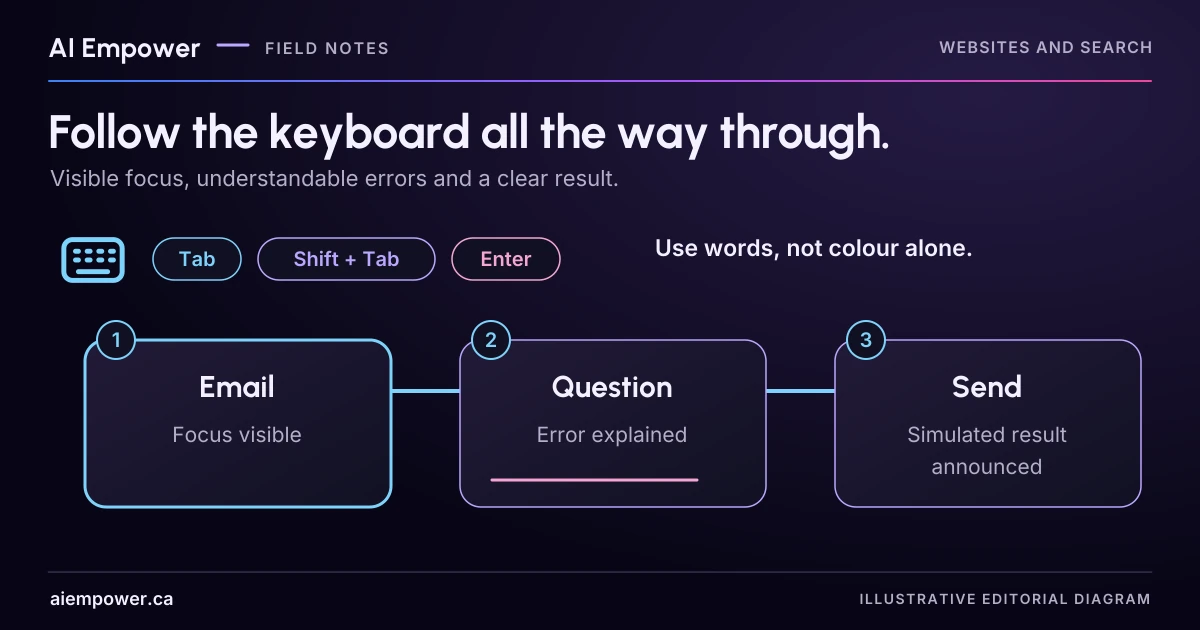
Rehearse focus, choices and error recovery on an authorised form, recording reproducible observations rather than a compliance badge.
Try reaching your enquiry form, choosing a topic, correcting an error and returning to the page without touching a mouse. When a control disappears from the keyboard route or the focus indicator becomes invisible, you have a specific problem to investigate.
This is a contained first check for a business owner and implementer. It does not replace a full accessibility evaluation, testing with disabled people or assistive-technology checks. Passing one short route cannot establish that the whole website is accessible.
Use a safe test destination
Work in an approved staging page or isolated demonstration with no live recipient, payments or account changes. If you only have the public form, stop before submitting unless the business has authorised a test and knows how to handle it. Do not create a real enquiry merely to complete an exercise.
Record the browser, operating system, keyboard-navigation settings and page version. Platform settings can affect which elements receive keyboard focus. Ask the implementer to confirm the test setup rather than silently changing security or accessibility settings.
You can use the task cards to plan a test, or adapt them to an existing authorised test form. If the keyboard activity is available on this page, distinguish its safe virtual trace from the separate native practice lab, and use fictional entries only. Any receipt from “Send test enquiry” is local and simulated; no enquiry or email copy is sent. Record what you actually observe: the exercise does not certify accessibility.
The fictional form and task
The lab form has a required email field, an optional topic selector, a required short question, an optional “Include a copy for me” checkbox, a Send test enquiry button and a Cancel link. Its page heading says “Practice enquiry.” A visible notice states that no message leaves the lab.
Use the fictional address practice@example.com and the question “Which equipment should I prepare for a beginner workshop?” The topic choices include workshops, website help and not sure. No personal information is needed.
Before testing, define what the form should do. A valid submission in the lab produces a clearly labelled simulated receipt. An empty required question produces a correction message and keeps the other entered values. Cancel returns to the lab's starting page. These are expected behaviours for the proposed fixture, not reports that they have been built or tested.
Task card one follows the focus
Start at the page's beginning and use the keyboard to reach the form. Tab generally moves through interactive elements; Shift+Tab moves backward. Native selectors and other controls may use arrow keys and additional standard keys. Follow the conventions of the tested platform rather than guessing a custom shortcut.
At each stop, ask: Can I tell which element is active? Does the order make sense? Can I reach the next control and return to the previous one? Does an overlay trap me or cover the element I need?
W3C's keyboard criterion addresses operating functionality through a keyboard interface, with a limited exception for functions that inherently depend on a movement path. A normal enquiry form should not need a mouse-only action. W3C's focus-visible guidance explains why users need to see where keyboard focus is.
Write the exact failing step. “Accessibility seems bad” gives the developer little to reproduce. “After Topic, Tab reaches the footer and never reaches the short-question field” is a useful observation, if that is what actually happened.
Task card two changes a choice
Choose a topic, move away, return and change it to “Not sure.” Toggle the optional checkbox on and off. Check that the state is apparent and that changing it does not unexpectedly submit the form or move you elsewhere.
Use keyboard activation for the button only in the safe lab. Confirm that it can be operated using the platform's expected controls. The visible design of a button does not prove that it has button behaviour or an accessible name.
A fictional failure note could read: “The decorative topic cards respond to clicks, but keyboard focus skips them. The user cannot choose or change the optional topic.” That is a scenario for discussion, not an observed fault on AI Empower's site. The proposed repair needs implementation and retesting; renaming a card in the design file alone does not fix keyboard operation.
Task card three recovers from an error
Leave the required question blank and attempt the simulated submission. Find the error using the keyboard. Does the message identify what needs correcting? Can you reach that field? Are the email and topic still present? After correction, can you retry without repeating the whole task?
W3C's form notification tutorial describes error summaries and clear information about individual errors. Colour alone should not carry the message. A red outline without explanatory text leaves the person to guess what went wrong.
Have a qualified tester inspect the announcement and navigation with appropriate assistive technology too. Seeing a message appear is not evidence that a screen-reader user will hear it. A visual keyboard check and an assistive-technology check answer related but different questions.
Keep a short, reproducible issue log
Use one record for each problem:
- Starting page and version.
- Browser, system and relevant test settings.
- Exact keys and entries used.
- Expected behaviour and actual observation.
- Whether the task could continue and how.
- Screenshot or other approved evidence, plus a text explanation.
- Owner, proposed fix and retest result.
Keep “not tested” distinct from “passed.” If the lab has no error state yet, you have not verified error recovery. If you cannot reach the confirmation screen, do not mark it accessible because the screenshot looks tidy.
After a fix, repeat the failed step and the whole route, including backward navigation and correction. Check that a focus repair has not created an unexpected jump elsewhere. For a real launch, include other important journeys, relevant assistive technologies, zoom and layout conditions in the wider evaluation plan.
The useful outcome today is a small list of observed blockers or a clearly bounded record of what you checked. Ask AI Empower to review your key website journeys, bringing that evidence rather than a general pass/fail score.
Week 22 · interactive local candidate
Trace a safe keyboard journey
Fictional local practice v1. Nothing is sent, saved between visits, verified with a real business, approved for release or published. No network requests, analytics or persistent storage. Use invented, low-sensitivity entries only; do not enter passwords, payment details or private customer information.
Use the trace to inspect an invented failure without breaking this page. The separate lab uses ordinary controls. Tab and Shift+Tab always remain the browser’s normal keys.
Practice enquiry
No message leaves the lab. Entries and receipt exist only in this page’s memory. Optional copy never sends an email.
Record a specific observation
These are your notes, not measurements made by the tool. A virtual failure scenario is not an observed fault on a real site.
This bounded exercise cannot certify WCAG compliance. A qualified tester still needs to evaluate actual keyboard behaviour, assistive technology and the wider journeys.
Week 22: Trace a safe keyboard journey
Fictional local practice v1. Nothing is sent, saved between visits, verified with a real business, approved for release or published. No network requests, analytics or persistent storage. Use invented, low-sensitivity entries only; do not enter passwords, payment details or private customer information.
All observations and checks below are fictional or reader-reported; none independently verified.

This is a safe native lab plus text-based scenario trace. No intentional keyboard trap, hidden focus, skipped real control or WCAG certification.
Trace scenario: Expected route
Virtual stop: 1/6: Email field
Trace: Email field → Topic selector → Short-question field → Include a copy for me checkbox → Send test enquiry button → Cancel link
Expected fixture route only. Observe the native lab separately; no real-site result is established.

Practice enquiry state: starting page
Email: practice@example.com
Topic: not sure
Short question: Which equipment should I prepare for a beginner workshop?
Include a copy for me: not selected (simulated only; no email)
Errors: none currently shown
No current simulated receipt.

Reproducible observation log (reader-reported, not automatically measured):
page: Practice enquiry · local fixture v1
environment: Not recorded; no browser/system/settings verified
keys: [not recorded]
expected: [not recorded]
actual: [not recorded]
continuation: [not recorded]
evidence: [not recorded]
owner: [not recorded]
fix: [not recorded]
retest: Not tested
Limits: Tab/Shift+Tab use native browser behaviour; selectors use platform conventions. Real browser keyboard traversal, screen-reader announcements, zoom and mobile checks remain unrun. Repeat both a failing step and the whole route after a fix. Not tested is distinct from passed.
Use the text-only exercise
The complete unchanged manuscript remains readable if the controls are unavailable.
Return to Keep a short, reproducible issue logSources & review
Primary sources checked on . The checklists and planning examples are AI-assisted editorial guidance, not source quotations or reported client results.
This AI-assisted guide uses fictional examples for practice. It does not report client results or establish that a live system will behave the same way.
Originally published: .